Configuration
Configuration values are stored in YAML files handled by the configuration library Dynaconf. The default values are stored inside the package itself. If you want to overwrite or extend these values you should create a user configuration file. To do that use the command:
icotest config
which will open the the user configuration in your default text editor. You can then edit this file and save your changes to update the configuration.
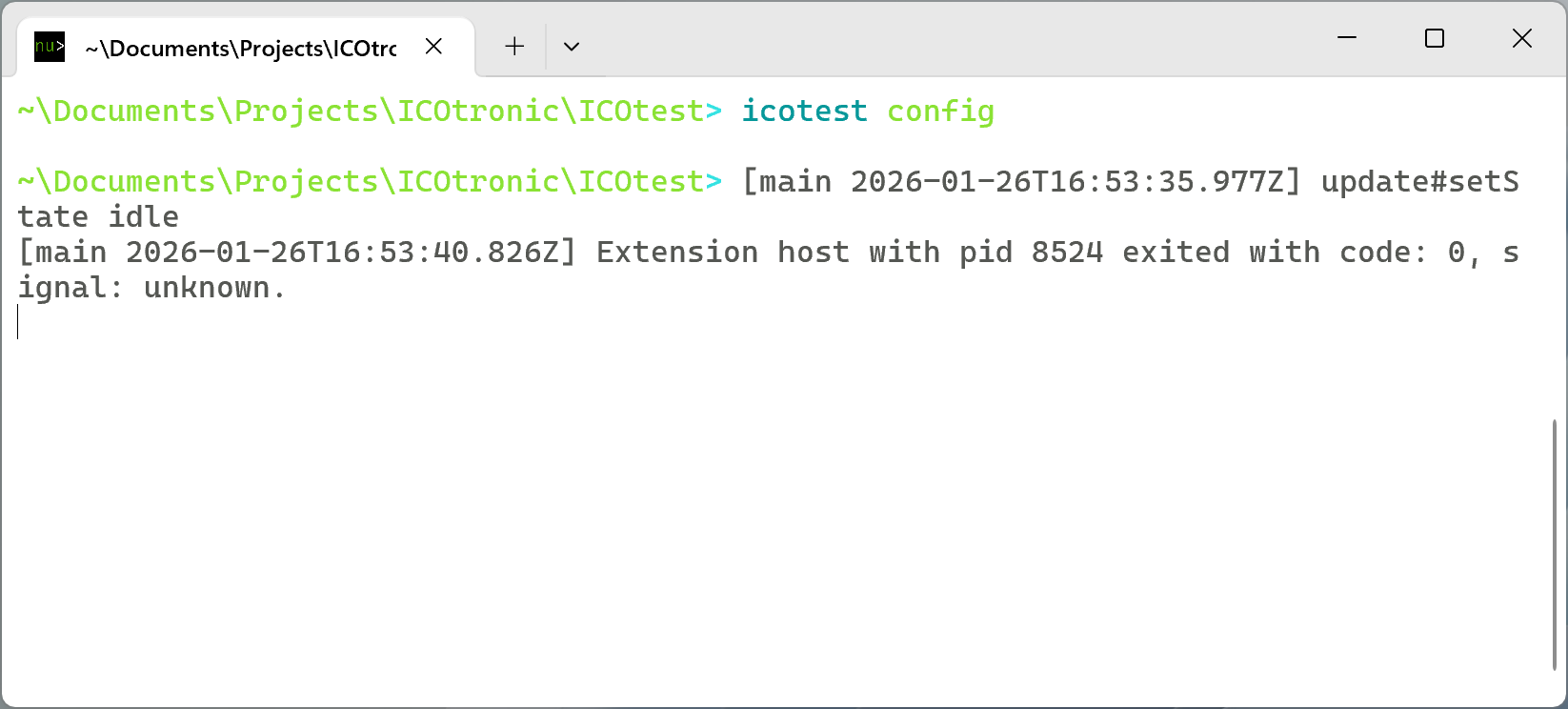
The command icontest config opens your the user configuration in the default text editor.
Hint
You might be confused by the (debug) output that your editor writes to the Terminal, after
you opened the configuration file with the command icotest config. Please just ignore
this text. You can use the Terminal, just like before, even if the editor is still
open. We recommend you just press Enter or Return before you input a new
command to insert a new prompt. Another option, to move the editor output out of the way,
is to clear the screen (usually bound to Ctrl + L).
For a list of available options, please take a look at the default configuration. Please make sure to not make any mistakes when you edit this file. Otherwise (some of the tests) will not work, printing an error message about the (first) incorrect configuration value.
Simplicity Commander
For some of the tests you need to either install
If you choose the first option, then please make sure to install the Simplicity Commander tool inside Simplicity Studio.
Linux
Please add the path to commander to the list commands → path
→ linux in the Configuration.
macOS
If you install Simplicity Studio or Simplicity Commander in the standard install path (/Applications) you do not need to change the config. If you put the application in a different directory, then please add the path to commander to the list commands → path → mac in the Configuration.
Windows
If you installed Simplicity Studio (including Simplicity Studio) to the standard location, then you do not need to change the configuration.
If you download Simplicity Commander directly, then the tests assume that you unzipped the files into the directory
C:\SiliconLabs\Simplicity CommanderorC:\Program Files\Simplicity Commander.If you did not use any of the standard install path, then please add the path to
commander.exeto the listcommands→path→windowsin the Configuration.
Notes:
You also need to install J-Link for Simplicity Commander to work with a USB programmer.
If your device does not show up in Simplicity Commander and only appears as USB BULK device in the Windows device manager, then please follow the steps described in the Segger Knowledge Base.
Additional Information
If you do not want to change the config, and Simplicity Commander (commander) is not part of the standard search locations for your operating system, then please make sure that commander is accessible via the PATH environment variable.
Firmware Files
Since ICOtest 0.8 you can upload multiple flash images via the configuration values:
sensor node→firmware→locationsandstu→firmware→locations.
Hint
Please note that we changed the configuration key from the singular location to the plural locations in ICOtest 0.8 to reflect that locations contain a list instead of a scalar value (like location used to)!
If you want to adapt the user configuration for your target and you enabled merging with dynaconf_merge: true in your user configuration file, then please do not forget to set dynaconf_merge: false for the locations value:
dynaconf_merge: true

# …

sensor node:
  firmware:
    dynaconf_merge: false
    # …
    locations:
      - filepath_first_firmware_image.s37
      - filepath_second_firmware_image.s37
Otherwise the default locations and your configuration values will be merged instead of overwritten.